
| 일 | 월 | 화 | 수 | 목 | 금 | 토 |
|---|---|---|---|---|---|---|
| 1 | 2 | 3 | 4 | 5 | 6 | 7 |
| 8 | 9 | 10 | 11 | 12 | 13 | 14 |
| 15 | 16 | 17 | 18 | 19 | 20 | 21 |
| 22 | 23 | 24 | 25 | 26 | 27 | 28 |
| 29 | 30 | 31 |
- Expose
- grid.js
- Schedule
- REST
- react
- Calendar
- Import
- non-persistable
- mendix
- daterangepicker
- Widget
- Excel
- javaaction
- externaldatabase
- exceldata
- ColorPicker
- TreeNode
- KakaoLogin
- Java
- MariaDB
- customlogin
- Today
- Total
Mendix개발일지
[Mendix] React TreeNode 본문
Mendix에서 TreeNode를 사용해보고 원하는 기능을 구현하기에는 한계가 있어서
React를 사용해서 TreeNode 를 만들어 보기로 했다.
yo @mendix/widget treeNode
내가 사용한 Library 는 react-sortable-tree 이다.
기본UI가있으며 테마도 설정할 수 있다.
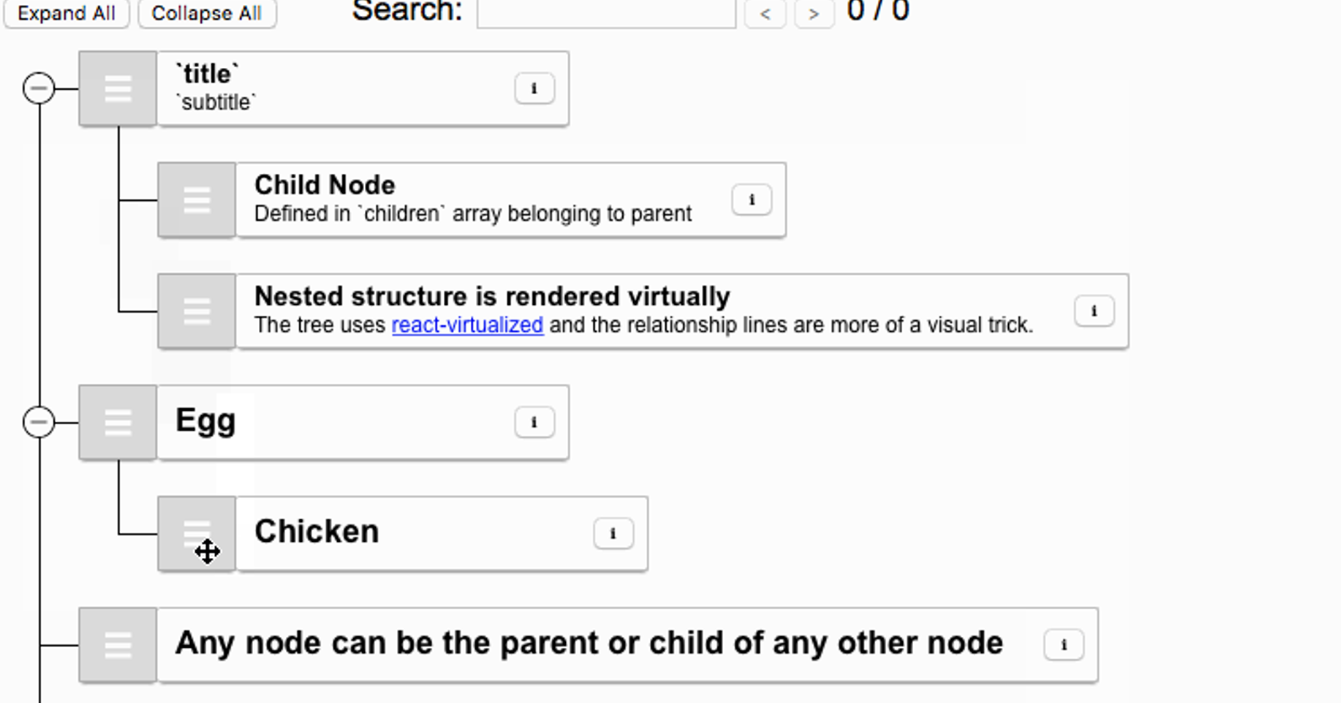

React의 dependency 문제때문에 오류가 날 수도있는데 아래를 사용해서 다운하면 된다.
npm install https://github.com/samarai-project/react-virtualized-fixed.git
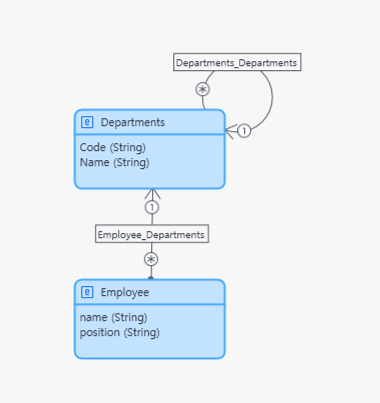
조직도를 예제로 만들어 볼 것이다. Domain Model은 부서가 부서를 참조하게 해놨고 그이유는
C레벨 > 사업부 > 사업본부 처럼 A부서가 B에속하고 C부서가 B에 속하는 형식이기 때문이다.
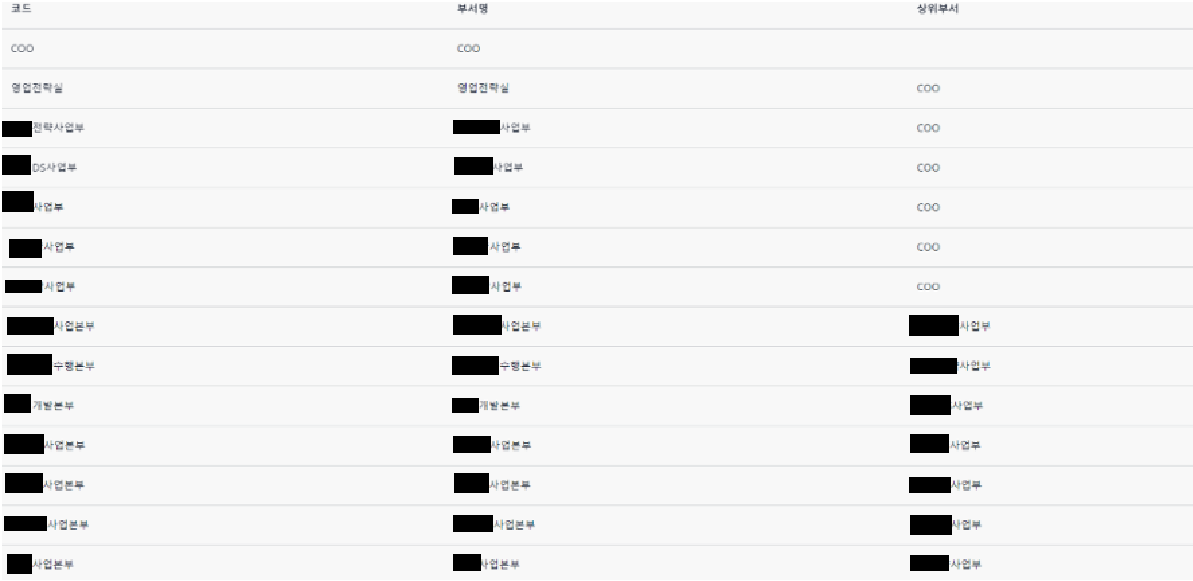
부서와 사원데이터를 아래와 같이 넣어주었다.
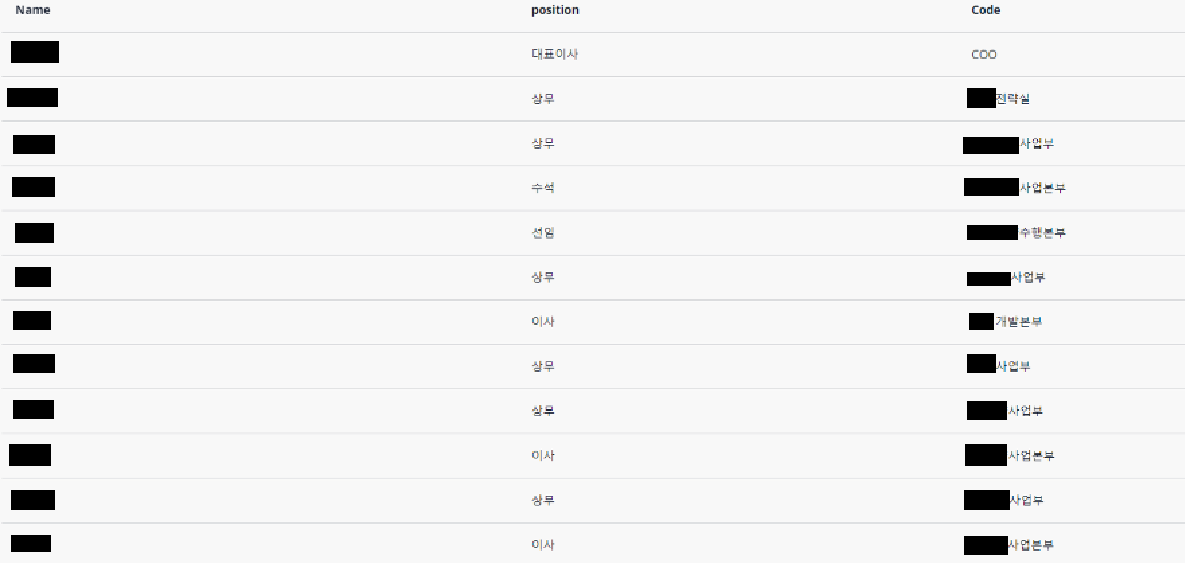
테스트 데이터는 다 입력 되었으니 React 를 만들어 보기로 하겠다.
일단 React에서 Department, Employee 데이터가 필요하기 때문에
[Widget].xml을 수정해 주겠다. 아래처럼 한다면 2개의 Datasource를 받을 수 있다.
<?xml version="1.0" encoding="utf-8"?>
<widget id="mendix.treenode.TreeNode" pluginWidget="true" needsEntityContext="true" offlineCapable="true"
        supportedPlatform="Web"
        xmlns="http://www.mendix.com/widget/1.0/" xmlns:xsi="http://www.w3.org/2001/XMLSchema-instance"
        xsi:schemaLocation="http://www.mendix.com/widget/1.0/ ../node_modules/mendix/custom_widget.xsd">
    <name>Tree Node</name>
    <description>My widget description</description>
    <icon/>
    <properties>
        <propertyGroup caption="General">
            <propertyGroup caption="department">
                <property key="departmentData" type="datasource" isList="true" required="false">
                    <caption>department Data source</caption>
                    <description />
                </property>
            </propertyGroup>
            <propertyGroup caption="employee">
                <property key="employeeData" type="datasource" isList="true" required="false">
                    <caption>employee Data source</caption>
                    <description />
                </property>
            </propertyGroup>
        </propertyGroup>
    </properties>
</widget>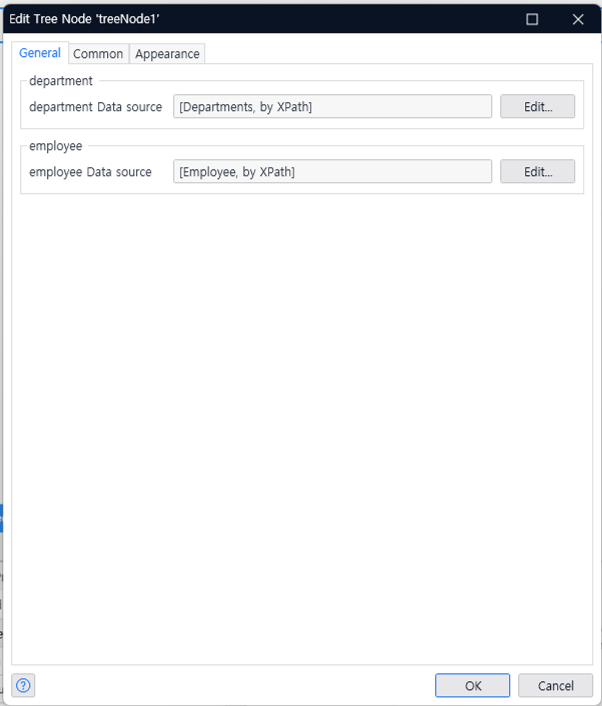
그렇다면 이번에는 실제 구현한 소스코드를 보겠다. 실제로 구현된 소스만 보면은 크게 복잡하지는 않다. 차근차근 설명을 해나가겠다.
import { createElement, useEffect, useState } from "react";
import SortableTree from "react-sortable-tree";
import Employee from "../model/employee";
import Department from "../model/department";
import TreeModel from "../model/treeModel";
import "react-sortable-tree/style.css"; // This only needs to be imported once in your app
import FileExplorerTheme from "react-sortable-tree-theme-file-explorer";

export function TreeNodeComponent({ departmentData, employeeData }) {

    // 자식이 있으면 drag false
    // const canDrag = ({ node }) => !node.children;
    const canDrag = ({ node }) => false;
    // 상태 초기값 설정
    const [treeData, setTreeData] = useState([]);
    useEffect(() => {
		    // 컴포넌트가 마운트될 때와 data가 변경될 때마다 실행
        if (departmentData.items && employeeData.items) {
            const dept = Department.getJson(departmentData);
            const emp = Employee.getJson(employeeData);
            const buildTreeData = TreeModel.buildTree(emp, dept, null);
            setTreeData(buildTreeData);
        }
        // data가 변경될 때만 useEffect 실행
    }, [departmentData, departmentData.items, employeeData, employeeData.items]);

    return (
        <div style={{ height: 400 }}>
            {/* onChange 이벤트에서 상태 업데이트 */}
            <SortableTree
                treeData={treeData}
                onChange={updatedTreeData => setTreeData(updatedTreeData)}
                theme={FileExplorerTheme}
                canDrag={canDrag}
            />
        </div>
    );
}
처음으로 주목해야 될 것이 바로 Model쪽이다. 데이터를 받아오고 Component에서 처리를 한다면 소스코드가 복잡해져서 따로 분리 했다.
import Employee from "../model/employee";
import Department from "../model/department";
import TreeModel from "../model/treeModel";
트리를 만들기 위해서 Mendix에서 넘어온 2개의 데이터를 가공해야 된다.
아래는 Mendix에서 넘어온 Employee의 데이터고
{
  "objectType": "MyFirstModule.Employee",
  "guid": "14636698788954293",
  "attributes": {
    "name": {
      "value": "김**"
    },
    "position": {
      "value": "대표이사"
    },
    "MyFirstModule.Employee_Departments": {
      "value": "14355223812243585"
    }
  }
}
Employee 소스코드로 원하는 데이터로 가공을 할 것이며
const Employee = {
    getJson(datasource) {
        if (datasource.items) {
            const result = datasource.items.map(emp => {
                const data = emp[Object.getOwnPropertySymbols(emp)[0]];
                const attr = data.jsonData.attributes;
                return {
                    name: attr.name.value,
                    position: attr.position.value,
                    departmentId: attr["MyFirstModule.Employee_Departments"].value
                };
            });
            return result;
        } else {
            return [];
        }
    }
};

export default Employee;
소스코드를 거치면 아래처럼 가공이 된다.
//가공된 사원 데이터
emp=[
  {
    "name": "김**",
    "position": "대표이사",
    "departmentId": "14355223812243585"
  },
  {
    "name": "김**",
    "position": "상무",
    "departmentId": "14355223812243729"
  },
  {
    "name": "김**",
    "position": "이사",
    "departmentId": "14355223812243936"
  },
  {
    "name": "김**",
    "position": "이사",
    "departmentId": "14355223812243990"
  },
  {
    "name": "김**",
    "position": "이사",
    "departmentId": "14355223812244111"
  }
]
그리고 두번째는 Department 데이터 가공이다.
{
  "objectType": "MyFirstModule.Departments",
  "guid": "14355223812243585",
  "attributes": {
    "Code": {
      "value": "COO"
    },
    "Name": {
      "value": "COO"
    },
    "MyFirstModule.Departments_Departments": {
      "value": null
    }
  }
}
{
  "objectType": "MyFirstModule.Departments",
  "guid": "14355223812243729",
  "attributes": {
    "Code": {
      "value": "사업부"
    },
    "Name": {
      "value": "사업부"
    },
    "MyFirstModule.Departments_Departments": {
      "value": "14355223812243585"
    }
  }
부서또한 원하는 데이터로 가공을 해줄것이다.
const Department = {
    getJson(datasource) {
        if (datasource.items) {
            const result = datasource.items.map(emp => {
                const data = emp[Object.getOwnPropertySymbols(emp)[0]];
                const attr = data.jsonData.attributes;
                return {
                    id: data.jsonData.guid,
                    code: attr.Code.value,
                    name: attr.Name.value,
                    parendId: attr["MyFirstModule.Departments_Departments"].value
                };
            });
            return result;
        } else {
            return [];
        }
    }
};

export default Department;
//가공된 부서 데이터
dept=[
  {
    "id": "14355223812243585",
    "code": "COO",
    "name": "COO",
    "parendId": null
  },
  {
    "id": "14355223812243729",
    "code": "사업부",
    "name": "사업부",
    "parendId": "14355223812243585"
  },
  {
    "id": "14355223812243936",
    "code": "사업본부",
    "name": "사업본부",
    "parendId": "14355223812243729"
  },
  {
    "id": "14355223812243990",
    "code": "사업본부",
    "name": "사업본부",
    "parendId": "14355223812243729"
  },
  {
    "id": "14355223812244111",
    "code": "사업본부",
    "name": "사업본부",
    "parendId": "14355223812243729"
  }
]
가공된 두개의 데이터를 마지막으로 Tree구조에 맞게 데이터를 만들어주어야한다 TreeData 틀은 아래와 같으며 문서에도 나와있어서 참고해보면 좋다.
[
	{
		title: [String],
		subtitle: [String],
		expanded: [true | false]
		children: [
			{
				title: [String]
			}
		]
	}
]
그래서 TreeData를 만들어주는 소스코드를 따로 작성했다.
const TreeModel = {
    buildTree(emp, dept, parentId) {
        const result = [];
        for (let i = 0; i < dept.length; i++) {
            if (dept[i].parendId === parentId) {
                const node = {
                    title: dept[i].name,
                    children: []
                };
                for (let j = 0; j < emp.length; j++) {
                    if (emp[j].departmentId === dept[i].id) {
                        node.children.push({ title: `${emp[j].name} ${emp[j].position}` });
                    }
                }
                node.children = node.children.concat(TreeModel.buildTree(emp, dept, dept[i].id));
                result.push(node);
            }
        }
        return result;
    }
};

export default TreeModel;
가공된 사원과 부서 데이터를 가지고 소스코드를 실행시켜본다면 TreeData가 잘 출력되는 것을 볼 수 있다.
[
  {
    title: "COO",
    children: [
      {
        title: "김** 대표이사"
      },
      {
        title: "A사업부",
        children: [
          {
            title: "김** 상무"
          },
          {
            title: "사업본부",
            children: [
              {
                title: "김** 이사"
              }
            ]
          },
          {
            title: "사업본부",
            children: [
              {
                title: "김** 이사"
              }
            ]
          },
          {
            title: "사업본부",
            children: [
              {
                title: "김** 이사"
              }
            ]
          }
        ]
      },
    ]
  }
]
그래서 처음에 봤던 React Component이 있던 SortableTree에 가공된 TreeData를 입력해주면!!
<SortableTree
    treeData={treeData}
    onChange={updatedTreeData => setTreeData(updatedTreeData)}
    theme={FileExplorerTheme}
    canDrag={canDrag}
/>

'Mendix' 카테고리의 다른 글
| [Mendix] Java Action으로 Excel데이터 읽기( 미해결 ) (0) | 2024.05.14 |
|---|---|
| [Mendix] mariadb 연동 및 Web에서 데이터 확인 (1) | 2024.05.14 |
| [Mendix] TreeNode (0) | 2024.05.14 |
| [Mendix] selectBox Widget 구현 (0) | 2024.05.14 |
| [Mendix] React Widget with Library (0) | 2024.05.14 |


